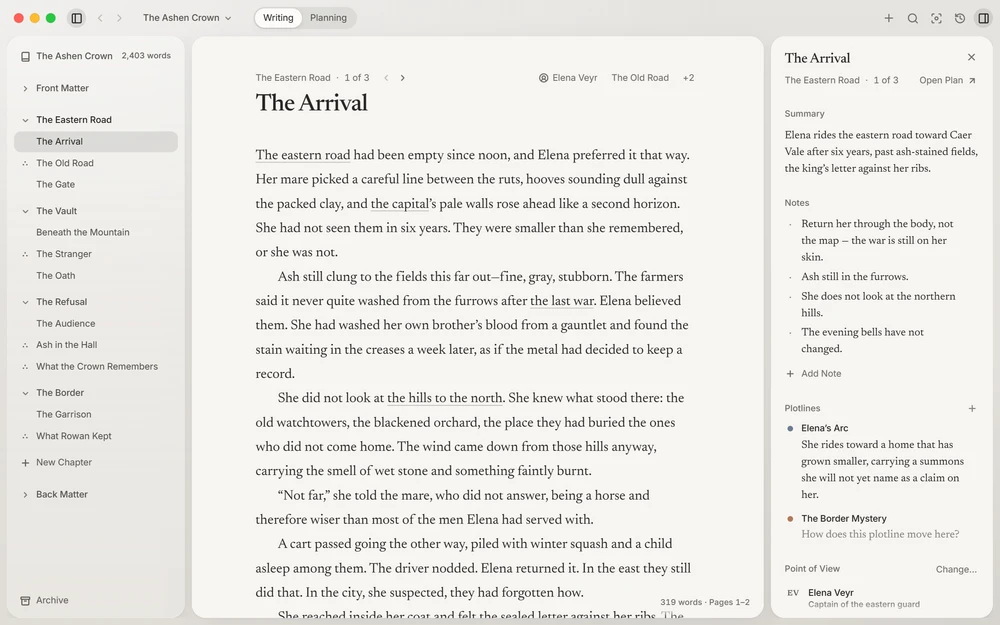
One scene at a time
Writing shows the book in the sidebar (its front matter, its parts, chapters, and scenes, then its back matter) and one scene on the page. Choose a scene to write it. The arrow keys walk the sidebar, opening what they rest on, and ↩Enter goes into the scene’s text; ⌘ + [Ctrl + [ and ⌘ + ]Ctrl + ] step to the scene before or after.
Everything is saved as you write. There’s nothing to remember to do.
What the page marks
A novel needs little formatting, so the page keeps to what a book’s text is made of. Select words and a bubble offers Bold, Italic, Footnote, Synonyms, and Link. The rest is in the Format menu, and on an empty line // offers it too (or the + that appears in the margin when you pause there):
- Extract (⇧⌘BCtrl+Shift+B, or
>and a space): a letter, a sign, a poem. ⇧↩Shift+Enter breaks a line within it. - Subheading (⌥⌘2Ctrl+Alt+2): a diary’s date, a document’s title.
- Centered (⇧⌘ECtrl+Shift+E): a sign, or “The End”.
- Scene Break (⇧⌘↩Ctrl+Shift+Enter): a break inside the scene.
- Insert Image…: a map, an illustration, a photo.
How these look in the book (an extract’s type, the mark between scenes) is the book’s format, set once in Book Format, never on the words themselves.
Scenes run on
The reader never sees a scene begin: one follows the last as if they were one text. Where the story should pause, put a break before a scene with Break Before Scene, in the Format menu or the scene’s menu in Context. A scene that opens after a break shows it in the sidebar.
Chapters are numbered by their place, so moving one never leaves “Chapter Three” before “Chapter Two”. A chapter’s title is yours, and optional. A prologue or an epilogue is a chapter the count skips: turn off Numbered in its menu.
How long it is
The page’s corner gives the scene’s length and, once it has words, the pages it falls on in the printed book (251 words · Pages 2–3). Select words and it counts them (12 of 251 words). Settings › Word Count and Pages chooses what it shows.
Keeping your eyes on the words
- Focus Mode leaves only the page: press its button in the toolbar, or ⌘ + .Ctrl + . while you write. Escape, or ⌘ + .Ctrl + . again, brings everything back.
- Typewriter Scrolling (⇧⌘TCtrl+Shift+T) keeps the line you’re typing at one height on the screen.
- Settings chooses the page’s typeface, size, and line width while you write. They change nothing in the book: how it’s printed is Book Format’s.
Footnotes
Choose Footnote in the bubble, or press ⌥⌘FCtrl+Alt+F, and a note’s mark goes after the words, its note open to be written. Point at a mark to read its note; press it to edit. Book Format decides where the book sets them: at the foot of the page, after each chapter, or at the end of the book.
Reading is a keystroke away: Read Book (⇧⌘RCtrl+Shift+R) shows the whole book on the pages it will be printed on. Point at a line there to write it.