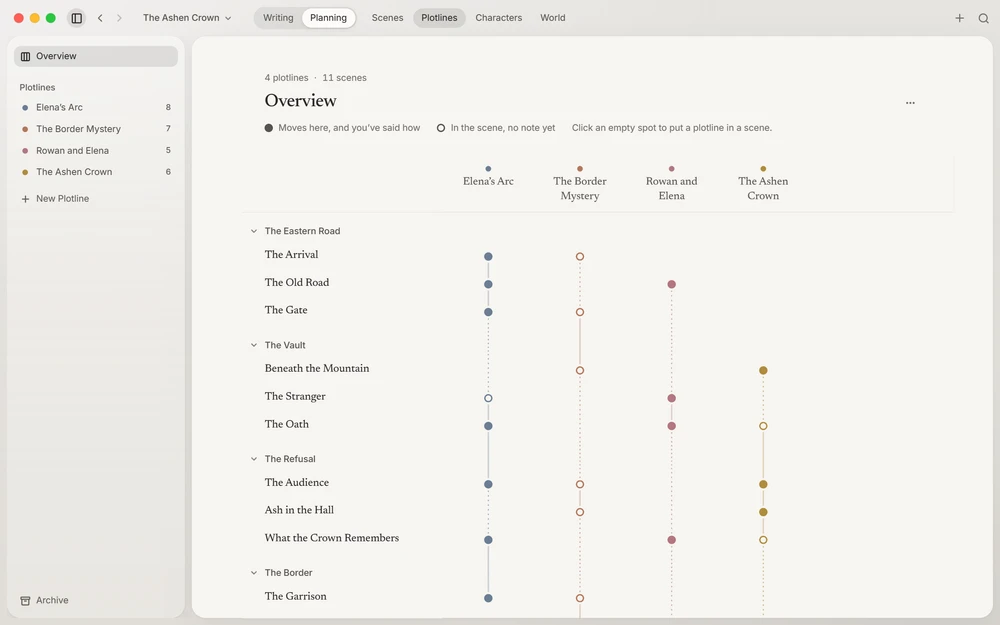
The board
Plotlines (⌘3Ctrl+3) opens on a board: the book’s scenes as rows, under their chapters and parts, and its plotlines as columns. A filled node means the plotline moves in that scene and you’ve said how; a ring means it’s there without a note yet. Each plotline’s line runs from its first scene to its last, solid while it moves and dotted where it goes quiet, so a thread you’ve let drop shows at a glance.
Point at an empty spot and click its + to put a plotline in a scene; click a node to write how it moves there. The arrow keys walk the board, and SpaceSpace puts a plotline in a scene. ⌘NCtrl+N makes a new plotline.
A plotline’s page
Each plotline has a page of its own: its name, its colour, a summary, the characters who carry it, and its arc through the story, beat by beat under the names of their chapters. Every beat has room to write, and the arc’s rail shows where the thread goes quiet, with a way to bring it back into one of those scenes.
Beside the arc, the page suggests the characters its scenes already hold, by plan or as their point of view, one click from carrying it.
While you write
Context shows the plotlines a scene moves and how each moves there, so the threads are in front of you as you write the scene that pulls them.